


Wink Hub Review – Scheduling
Scheduling is a key feature. It is the basis for some simple home automation. I don’t know about you, but I have a few of those analog timers around the house. Turning lights on and off, especially during the holidays. It’s a little more hidden than some of the more prominent
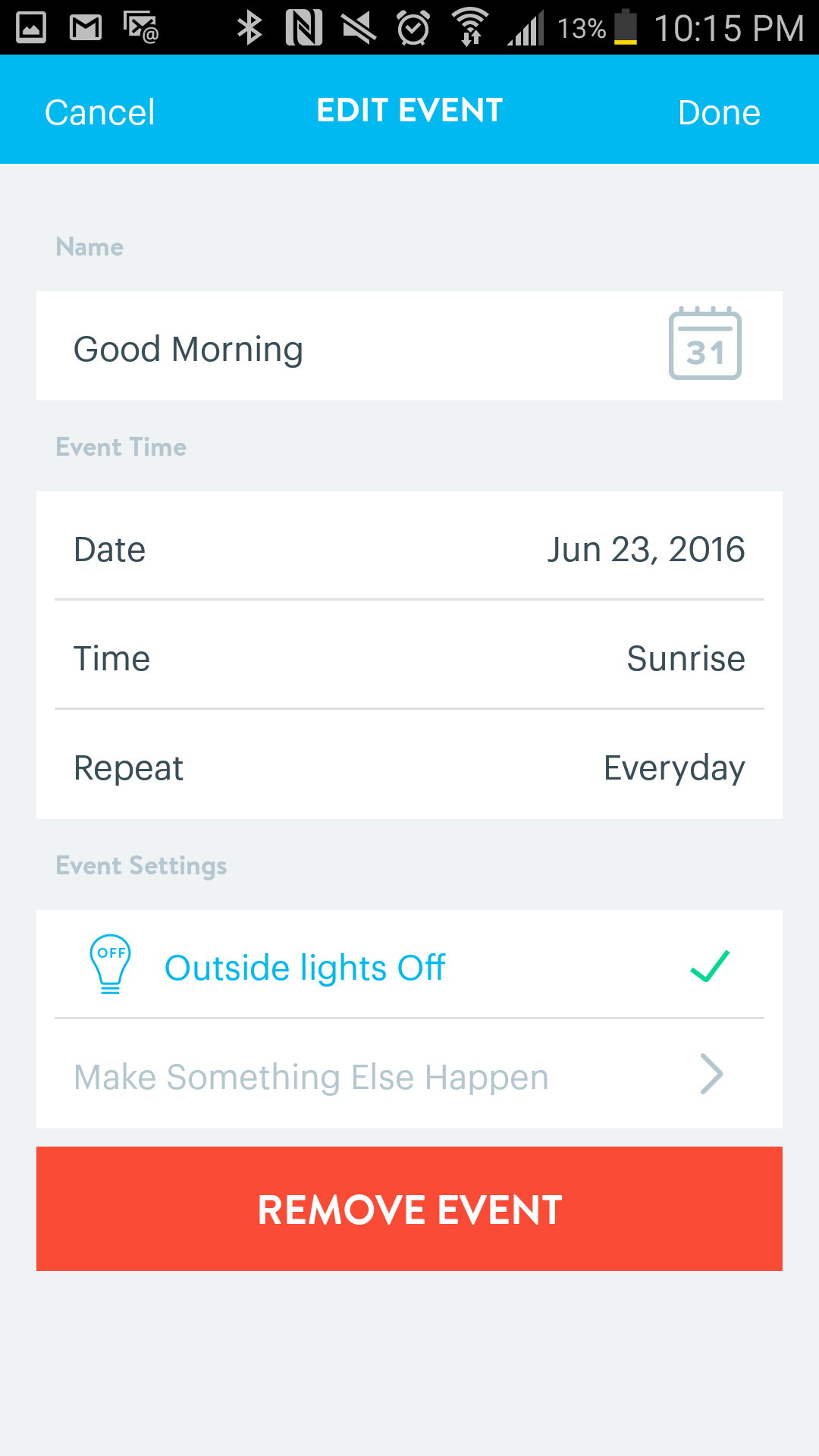
features like Robots. If you go into the light control of the Wink app, then select the three blue dots to get to the more control section. You can scroll down and find the scheduling selection. I quickly scheduled 2 events. I created one event to shut off the outside lights and sunrise. Then I created another scheduled event to turn the outside lights on at sunset. This works fantastically. In the Pacific Northwest we have dark falls and very light summers. We are talking dark at 3pm in November and Light till 10:30pm in June. Very nice to have this automated. When you configure the scheduling and select sunset / sunrise, you have to select a location.
Wink then has the intelligence to adjust as the times shift and sunrise and sunset change with the season. That made it very easy to set it up and forget it. That what all this tech is for right? Automate your life and make some little things a little easier.
Another section in the Wink app is for shortcuts. This allows you to create an icon to do a specific tasks. Like, turn on or off the outside lights. Lock the front door, set temperature, any one of the many things you can do with the Wink app.
I created one to turn off all the lights. That way with one press of a button, I knew all the lights were off in the house. Keeping your lights off during the day always helps lower the energy bill. That change in your pocket can add up to more smart devices.
The Shortcuts feature is also how Wink maintains compatibility with IFTTT, which stands for “If This Then That.” Once you link accounts, you can use Wink shortcuts in your IFTTT recipes. That opens the door to a whole realm of possibilities.
[sam_pro id=”1_22″ codes=”true”]
While looking at the shortcut menu, I noticed a message at the bottom. The opportunity to make a voice shortcut through Google. I selected the option and was presented with a few Google shortcuts to choose from. I chose to make one titled Home Mode. The titles are set for you, so that google voice will recognize them. There was an OK selection, take a look at the pictures below. You can see all of the selections. It is tagged as a beta feature.
These Google shortcuts are part of Google Now allowing you to have real time voice interaction with the Wink hub. It was fairly simple to setup. I selected the Home mode, then added some activities. I wanted the table lights to turn on 100% brightness, set the thermostat to cool to 72 and heat if it drops below 60. Then lock the front door. At the bottom of Google shortcut, I noticed that there was a configuration screen to place Wink shortcuts on your Google Wearables for easy access.
After saving the shortcut it was time to test. I walked into the house. Pulled my phone out and said, “OK Google, Activate Home Mode on Wink”. Then a half second later, the lights turned on, the Nest thermostat came to life and changed settings, and the front door locked behind me. I even got an activation card from Google Now informing me that home mode was activated. That was an interesting surprise. I can only imagine the opportunity to build on Google Now, and Siri as Apple HomeKit is stirring up a lot of interest.
Wink app has lots of other features you would expect. You can send others invites to control devices in your home. They just have to download the app and create an account. Then you can go through and enable what they can control. You can change device icons. You can also view the activity menu to 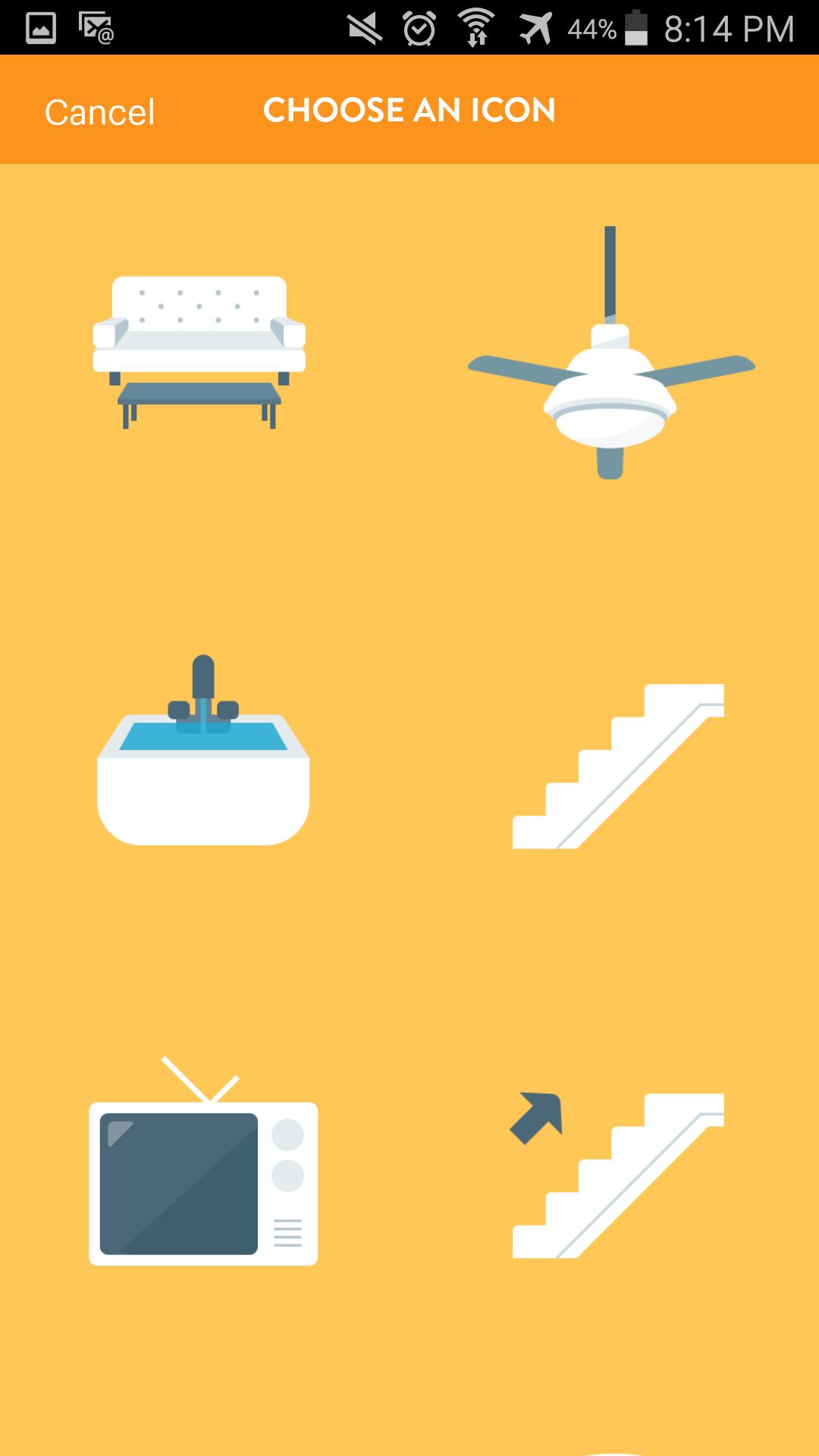 view all the smart activity in your home. This was a nice feature, when you create Robots and schedules, this is the view that I used to check that things were happening while I was fast asleep.
I was a little let down that the only way to control the Wink hub is through the mobile apps. I was hoping to be able to have some access through a PC portal, or possibly through the Wink website. My thought was to have a family console or control center. As I used the Wink app, I realized that it didn’t matter much. It was just something I expected. I was able to do everything I wanted and even more with just the Wink mobile app.
While I was reviewing the Wink hub an update was released. I was out and about and received an alert on my phone. I was able to imitate the update, while not even being home. That was a pleasant surprise. The Wink hub updated itself before I got home and everything was still intact and working as it should. That was a nice touch. I did appreciate being able to update the hub during the daytime hours while I was not home.